Choose the one
that works for you
PRISM comes in two versions. Choose the current version for a simple start, or the beta version to keep the familiar OBS workflow and
plugins while adding PRISM's features.
A new beta version built on OBS.Installing it removes your existing PRISM Live Studio.
Meet the new PRISM Live Studio Beta, adding PRISM's live features to the familiar OBS environment.
PRISM comes in two versions. Choose the current version for a simple start, or the beta version to keep the familiar OBS workflow and
plugins while adding PRISM's features.


B2B features and the macOS version are coming soon. Please use the current version in the meantime.
For details on the beta version, see the User Guide.
The two versions cannot be used together. Installing the beta removes your existing PRISM Live Studio and replaces it with the new version.
You can reinstall the current version from this website at any time.
Experience a highly intuitive interface that allows you to easily
customize the
streaming layout to create your own unique format.
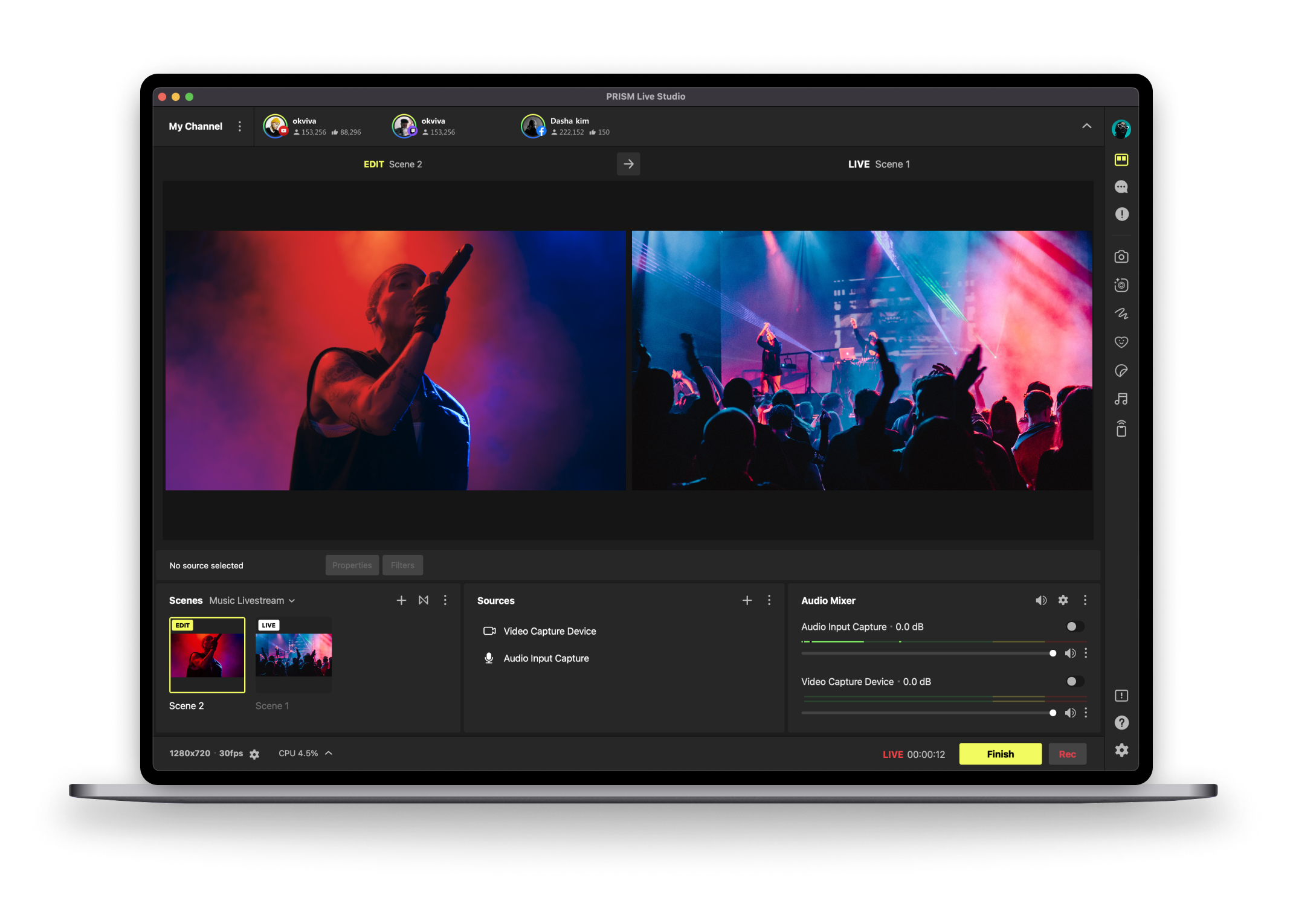

Stream simultaneously on YouTube, Twitch, Facebook, SOOP, and
more. Increase
your viewers with just one setup.
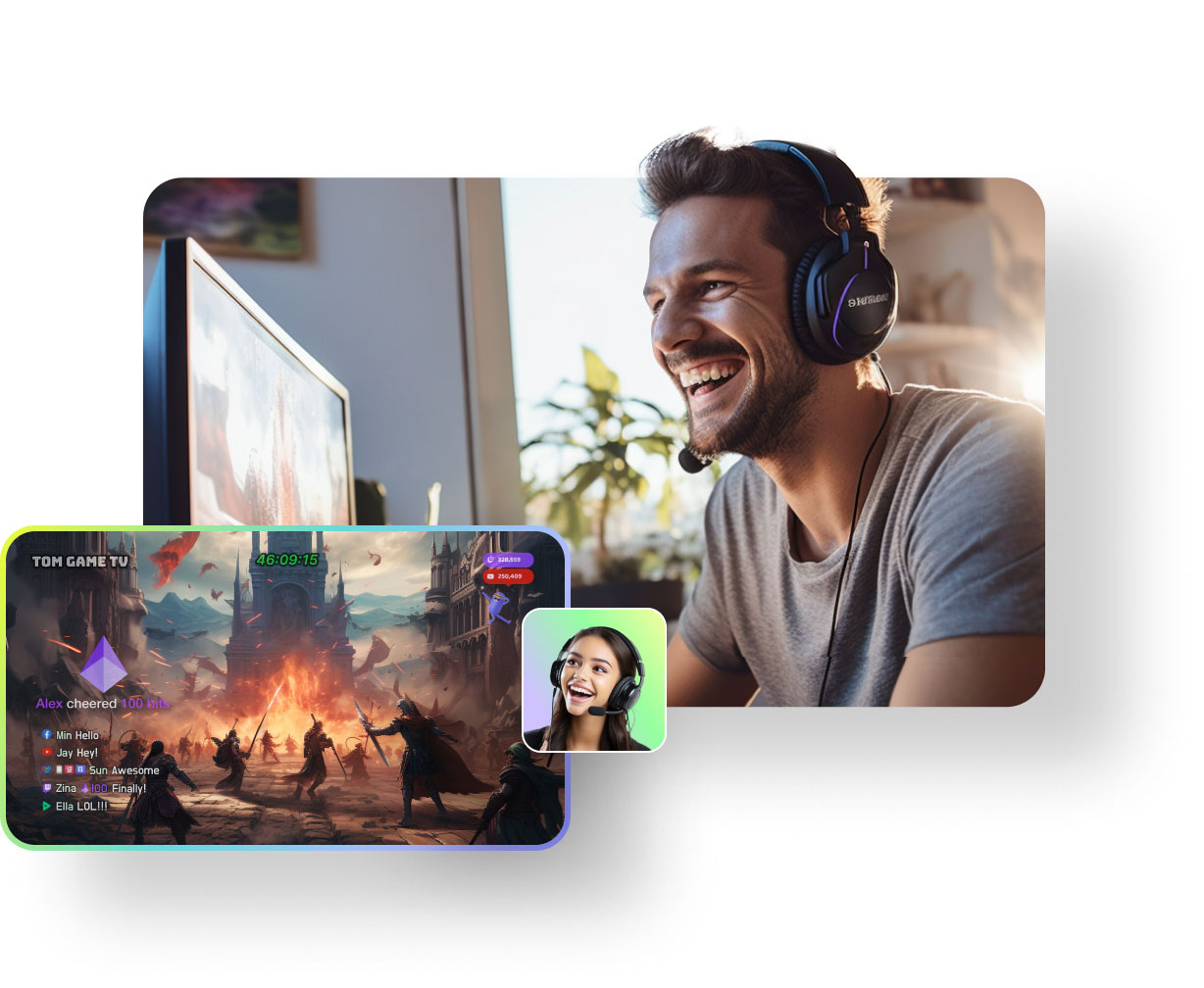
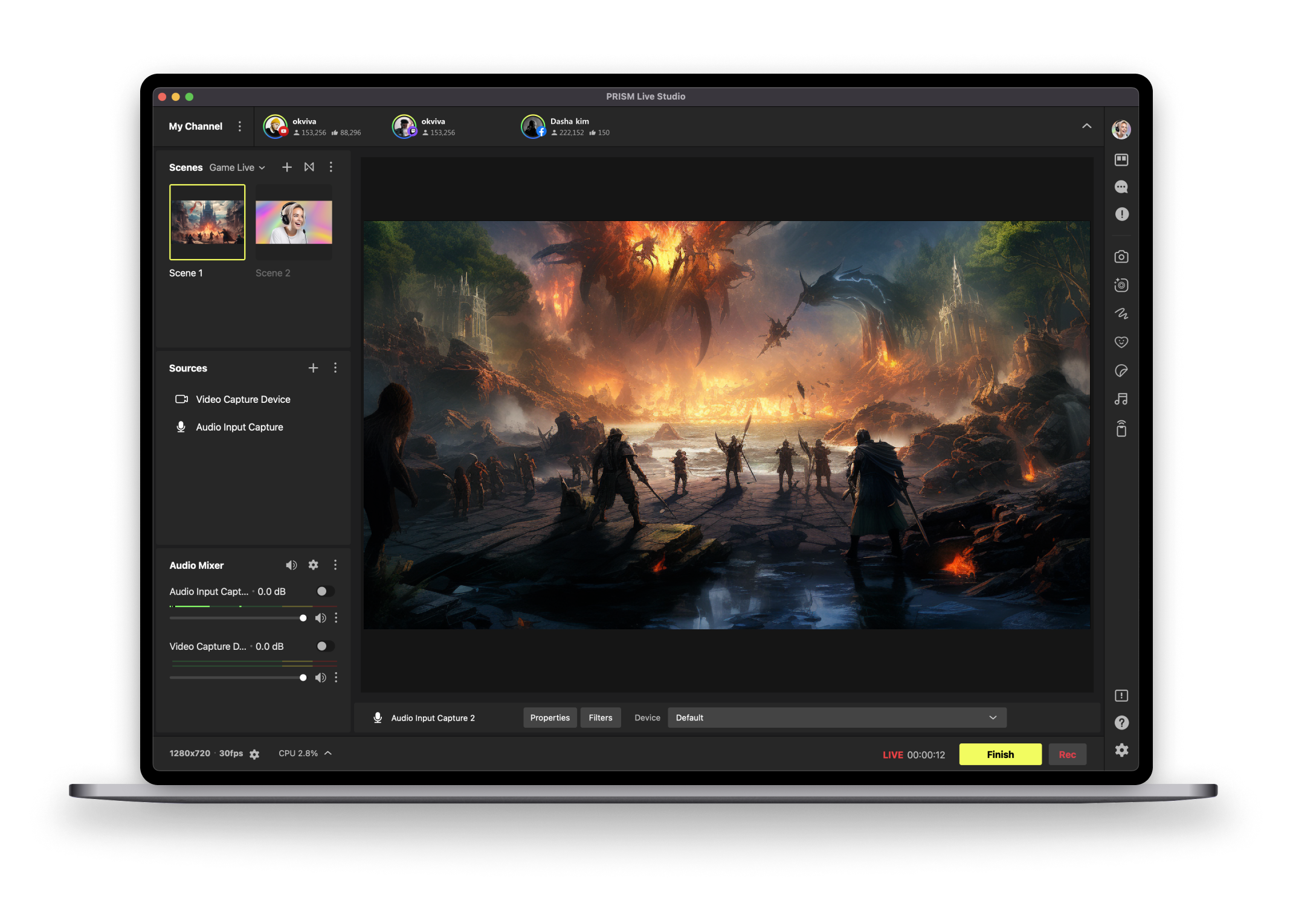
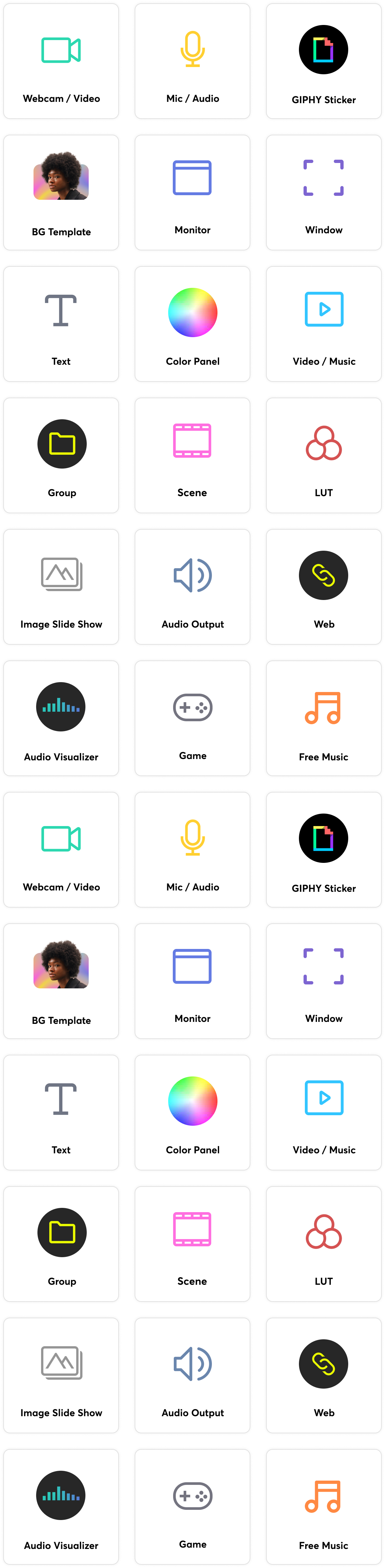
Enhance your screen by adding photos, videos, and games in play.
Achieve
professional-quality streaming without the need for complex equipment.
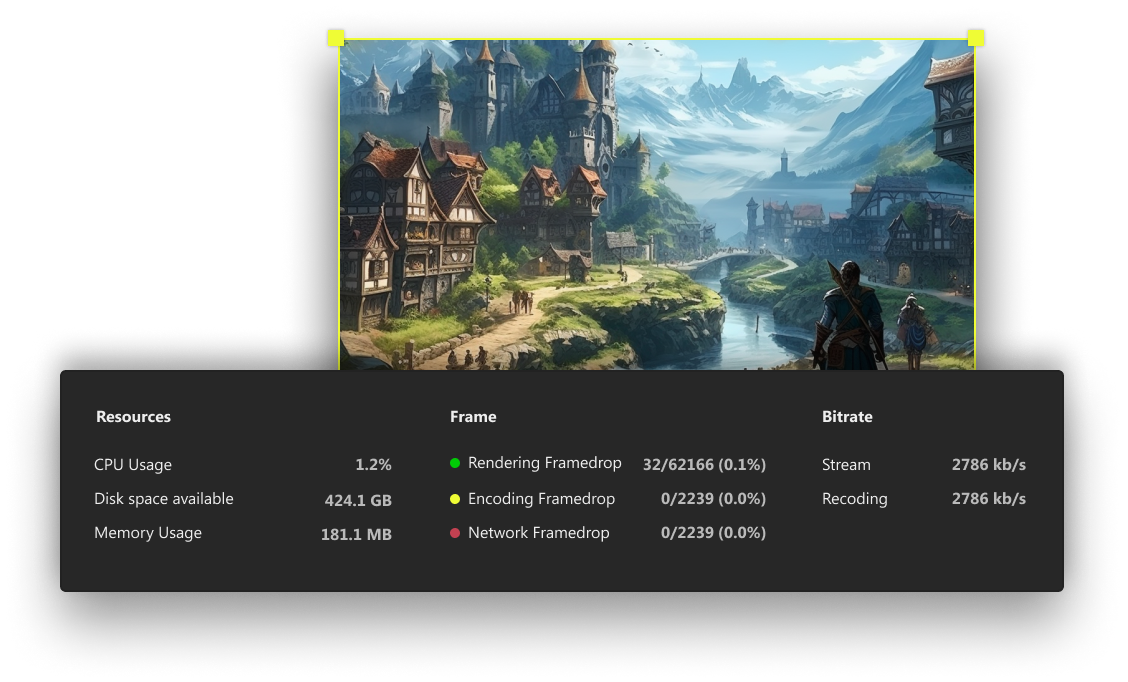
Enjoy buffer-free, stable streaming thanks to the low CPU usage.
PRISM ensures seamless high-definition game streaming.
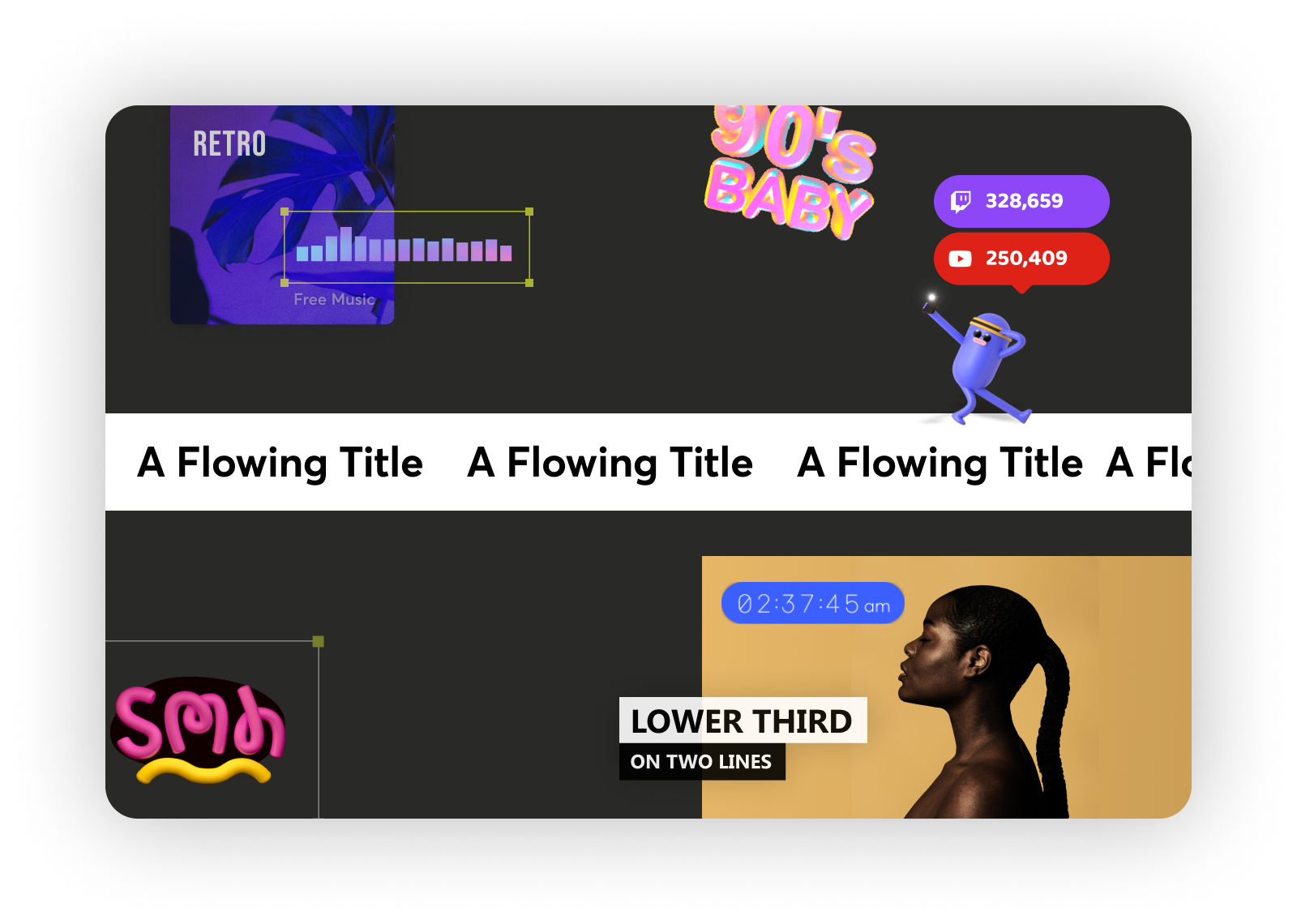
Add excitement to your live streams with a range of free PRISM
widgets.
Interact with your viewers in real-time and make your streams come alive.

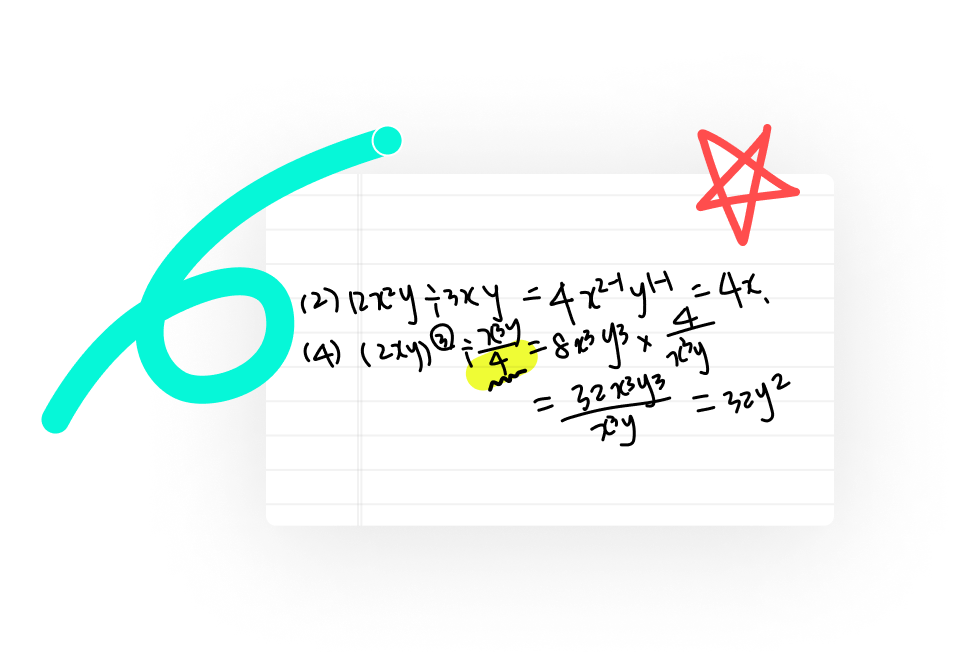
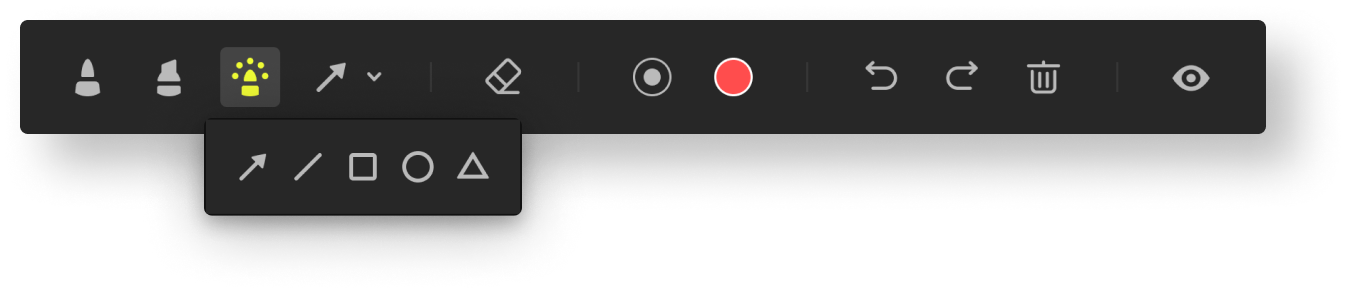
Activate Drawing Mode to freely sketch and add shapes to your screen.
This feature is perfect for conveying content in video classes and meetings effectively.
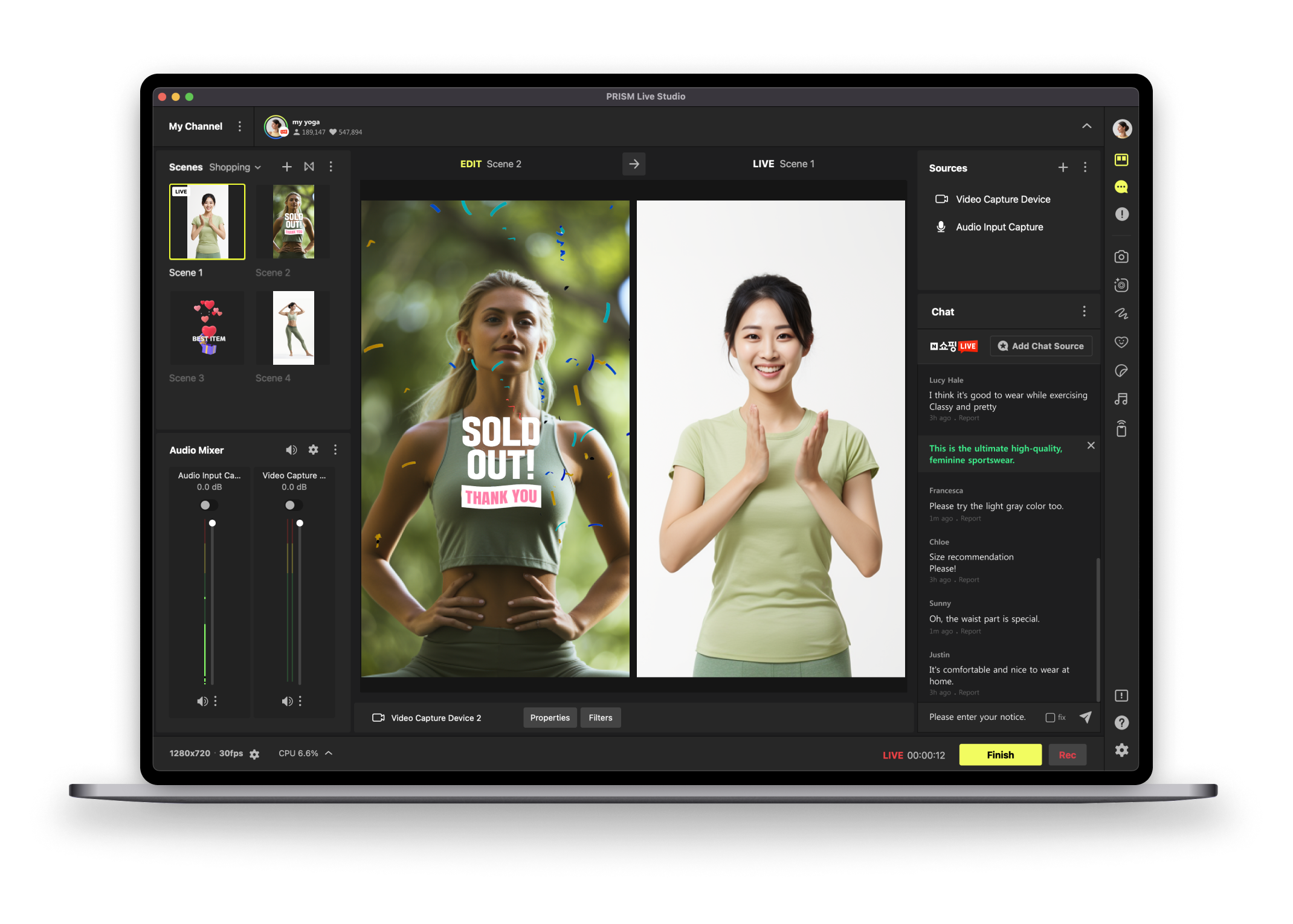
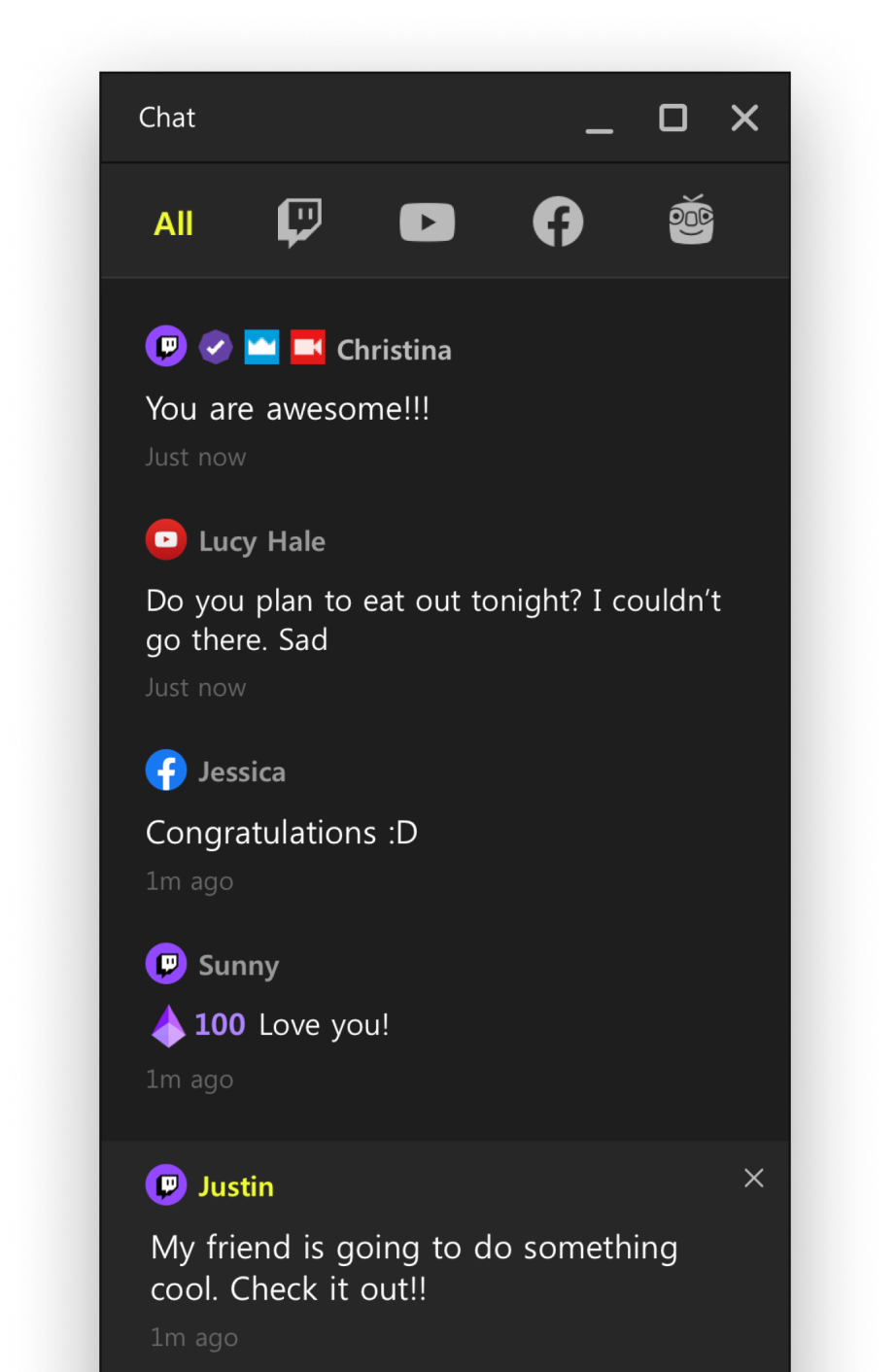
Easily monitor live chat in real-time within the app during streaming.
Enjoy
interacting and engaging with viewers to create your content collaboratively.
Here are some questions from PRISM Live Studio users.
For complete guides, tips, and more, please visit our Help section.
How the two versions differ
Both versions offer the same PRISM core features, including multistreaming, unified chat, scene templates, widgets, and mobile app connection. The biggest difference is the layout and the way you use them.
- Current version: The layout and streaming workflow are simple, so you can start streaming right away without complex setup. It is easy to use even without any OBS experience.
- Beta version: Has the same layout and workflow as OBS, so anyone who has used OBS will feel right at home. You can install and use a wide range of OBS plugins, and PRISM Lens effects like face retouch can be applied directly as filters without the separate Lens app. Streaming is lighter, and you get new OBS features and improvements sooner.
The beta is currently available on Windows only. macOS and B2B features are coming soon. macOS users and B2B customers, please use the current version.
For details, see the User Guide.
Please check before installing
- Installing the beta removes the existing PRISM Live Studio from your desktop. The two versions cannot be used at the same time.
- You can download the current version again from the website at any time.
With a PRISM Plus subscription, you can stream to up to 6 channels simultaneously.
(Free users are limited to streaming on a single channel.)
How to Set Up Multi-Streaming
1. Add the channels you want to stream to using either platform integration or RTMP connection.
2. Hover over each added channel icon and click the Switch button to turn it On.
3. Make sure all channels you want to stream to are switched On.
4. Click the [Start Streaming] button to review the stream settings for each channel.
5. Once confirmed, click [Start Streaming] again to begin multi-streaming.
The Mobile Device Linkage feature in previous versions of Windows v4 has been
released as PRISM
Lens with enhancements and improvements.
Download and install PRISM Lens from the official PRISM website to try it out.
You can easily connect your PC and mobile devices using the same Wi-Fi network with
a QR code.
Click the PRISM Mobile Linkage button on the sidebar in PRISM Lens for a detailed
guide on how to connect devices.
Virtual Background and Face Retouch Effects are available in the PRISM Lens app.
You can add the Lens app as a source in the PRISM Desktop app or use it as a virtual camera in Zoom and other video conferencing or live streaming programs.
Download PRISM Lens from the official PRISM website and try it out for yourself.
PRISM integrated chat feature is provided if two or more of the simultaneous
transmission channels are account-linked channels.
You can write a comment and send it directly to the chat window.
On YouTube, you can delete your comment by placing the mouse cursor over the comment
and clicking the Delete button.